
Connect a mailbox
IMAP to read, SMTP to send.
Each mailbox in Mail Desk needs two connections: IMAP to read mail and SMTP to send it. This page gives the settings for the common providers, explains the security options and the folder mapping, and lists what the connection test checks.
01What you need
| Field | What to enter |
|---|---|
| E-mail address | The mailbox address, for example info@yourcompany.com. Each address can be added once. |
| IMAP server, port, security | From your provider, see the tables below. |
| SMTP server, port, security | From your provider, see the tables below. |
| User name | Usually the full e-mail address. If you leave the IMAP user name empty, the e-mail address is used; an empty SMTP user name uses the IMAP user name. |
| Password | The mailbox password, or an app password where the provider requires one (Gmail, Google Workspace). An empty SMTP password uses the IMAP password. |
Passwords are encrypted before they are saved and are never shown again. When you edit a mailbox later, leave a password field empty to keep the saved one (Security).
02Security: SSL/TLS, STARTTLS or none
| Option | What it means | Usual ports |
|---|---|---|
| SSL/TLS | The connection is encrypted from the first byte. | IMAP 993, SMTP 465 |
| STARTTLS | The connection starts unencrypted and is switched to encryption before the login. Mail Desk stops if the server does not offer STARTTLS on that port. | IMAP 143, SMTP 587 |
| None | No encryption. Mail Desk refuses to send an SMTP password over it unless the server is localhost. Use it only for a mail server on the same machine. |
With SSL/TLS and STARTTLS, Mail Desk requires TLS 1.2 or newer and checks the server's certificate and host name. The mailbox form has the option Check the server certificate (keep on unless your server uses a self-signed certificate), on by default. Switching it off switches off both checks for that mailbox. Do that only for your own server whose certificate you know, never for a public provider.
The encryption list shows SSL/TLS (993, 465), STARTTLS (143, 587) and None (not recommended). The test recognises the two most common mix-ups and says so: SSL/TLS chosen on a STARTTLS port (143, 587, 25), and STARTTLS or None chosen on an SSL/TLS port (993, 465).
03Gmail (personal accounts)
Gmail does not accept your normal Google password from other programs. You need an app password, and app passwords need 2-Step Verification.
- Turn on 2-Step Verification in your Google Account (myaccount.google.com > Security).
- Create an app password at myaccount.google.com/apppasswords. Give it a name such as "Mail Desk". Google shows a 16-character password once; copy it and enter it without the spaces between the groups.
- If your Gmail settings show an IMAP option (Settings > See all settings > Forwarding and POP/IMAP), make sure IMAP is enabled.
- Add the mailbox in Mail Desk with the settings below and the app password in the password field.
| Server | Port | Security | |
|---|---|---|---|
| IMAP | imap.gmail.com | 993 | SSL/TLS |
| SMTP | smtp.gmail.com | 465 (or 587) | SSL/TLS (or STARTTLS) |
User name: your full Gmail address. The Gmail button next to Fill in for in the mailbox form fills in both servers, ports 993 and 465 with SSL/TLS, and the IMAP user name from the e-mail address, and shows a short reminder about the app password.
Gmail folders. Gmail marks its special folders, so the connection test suggests them automatically: Sent is [Gmail]/Sent Mail, Trash is [Gmail]/Trash (or [Gmail]/Bin), Archive is [Gmail]/All Mail, Spam is [Gmail]/Spam. The names follow the language of your Gmail account. Moving a conversation to Archive moves the Inbox copy to All Mail, which in Gmail is the same as archiving.
Gmail keeps its own copy of mail sent through smtp.gmail.com, and Mail Desk also saves a copy in the Sent folder. Mail Desk recognises both by their Message-ID, so the conversation shows the reply once. Whether Gmail's own Sent folder shows one copy or two has not been verified; version 1.0 has no switch to skip the copy.
04Google Workspace
Workspace mailboxes (your own domain on Gmail) use the same servers and ports as Gmail, the full address as user name, and an app password.
- The user needs 2-Step Verification. Your Workspace administrator may have to allow it for your organisation first.
- Administrators can turn IMAP off for users in the Google Admin console (Gmail > End User Access > POP and IMAP access). It must be on for this user.
- If the App passwords page is not offered for your account, your organisation's settings do not allow app passwords. Mail Desk 1.0 then cannot connect to that mailbox, because it has no Google OAuth sign-in.
05cPanel and Plesk hosting mail
Mailboxes at your web host (for example info@yourdomain.com created in cPanel or Plesk) use your host's mail server.
- Find the settings. In cPanel, open Email Accounts, click Connect Devices next to the address and use the Secure SSL/TLS Settings. In Plesk, open Mail, select the address and look for the mail client or manual setup settings. If you cannot find them, ask your host for the IMAP and SMTP server, ports and security.
- Use the secure settings, usually IMAP
993SSL/TLS and SMTP465SSL/TLS, with the full e-mail address as user name and the mailbox password. - Use the server name the host shows. It is often
mail.yourdomain.com; on shared hosting it can also be the server's own name, such asserver123.hostname.com.
On shared hosting, the certificate often belongs to the server's own name and not to mail.yourdomain.com. Then the test reports a certificate (TLS) error. Use the server name your host shows for secure connections instead of mail.yourdomain.com. Switch off Check the server certificate only if your host confirms there is no valid certificate.
The cPanel button in the mailbox form fills in ports 993 and 465 with SSL/TLS, sets both servers to mail. plus the domain of the e-mail address you typed, and fills the IMAP user name with the address. Change the server names if your host shows others.
06Your own or another IMAP server
Any IMAP4rev1 server with a password login can work, together with an SMTP server that offers AUTH PLAIN or AUTH LOGIN. Enter the host names, ports and security your provider gives you.
| The server… | What Mail Desk does |
|---|---|
| Marks special folders (SPECIAL-USE) | The folder mapping is suggested from those marks. |
Supports MOVE | Moves to Trash and Archive in one step. |
Has no MOVE but has UIDPLUS | Copies the message, flags the original as deleted and expunges only that message. |
Has neither MOVE nor UIDPLUS | Copies, flags as deleted and runs a plain EXPUNGE, which also removes any other message already flagged as deleted in that folder. Most current servers have MOVE. |
| Reports a SIZE limit for SMTP | A message larger than the limit is not sent and the error says so. |
| Offers only other SMTP logins (CRAM-MD5, XOAUTH2 …) | Cannot log in; the error lists what the server offers. |
Addresses with non-English characters (in the sender or a recipient address) can be sent only through an SMTP server that supports SMTPUTF8; otherwise Mail Desk refuses the message before sending.
07Microsoft 365 and Outlook.com
Microsoft 365 (Office 365, Exchange Online), Outlook.com, Hotmail and Live accept IMAP and SMTP only with an OAuth sign-in. Mail Desk 1.0 signs in with a password, so these mailboxes cannot be connected. When the login to office365.com, outlook.com, hotmail.com or live.com servers fails, the test says that OAuth is needed instead of "wrong password".
If your company domain uses Microsoft 365, this applies to it too, because its mail server is Microsoft's.
08The mailbox form
Mail Desk > Mailboxes > Add a mailbox (needs the Manage mailboxes permission). The form has six numbered cards; Save mailbox is at the bottom.
| Card | Field | Notes |
|---|---|---|
| 1 · Address | Fill in for | Buttons Gmail, cPanel and Other server. They fill in servers, ports and encryption and show a hint; you can change everything afterwards. |
| Name | How the mailbox is called in Mail Desk, for example "Support". Required. | |
| E-mail address | Required. Each address can be added once ("A mailbox with this address already exists."). | |
| Sender name | The sender name on outgoing mail. Empty: the mailbox name is used. | |
| Owner | The staff member the mailbox belongs to (you, for a new one). | |
| Active (read new mail on every cron run) | On by default. A paused mailbox is not synced and cannot send. | |
| Import the last N days | How far back the first sync reads. Default 30, 0 = all mail, at most 3650 (First import). | |
| 2 · Who can use it | Shared mailbox, Staff members, Roles | On by default. Tick staff members and roles (Sharing). The lists are greyed out while Shared mailbox is off. Roles appears only when your Perfex has staff roles. |
| 3 · IMAP · Incoming mail | Server, Port, Encryption, User name, Password or app password | Port default 993, encryption SSL/TLS. An empty user name uses the e-mail address. |
| 4 · SMTP · Outgoing mail | Server, Port, Encryption, User name, SMTP password | Port default 465, encryption SSL/TLS. An empty user name uses the IMAP user name; an empty SMTP password uses the IMAP password. |
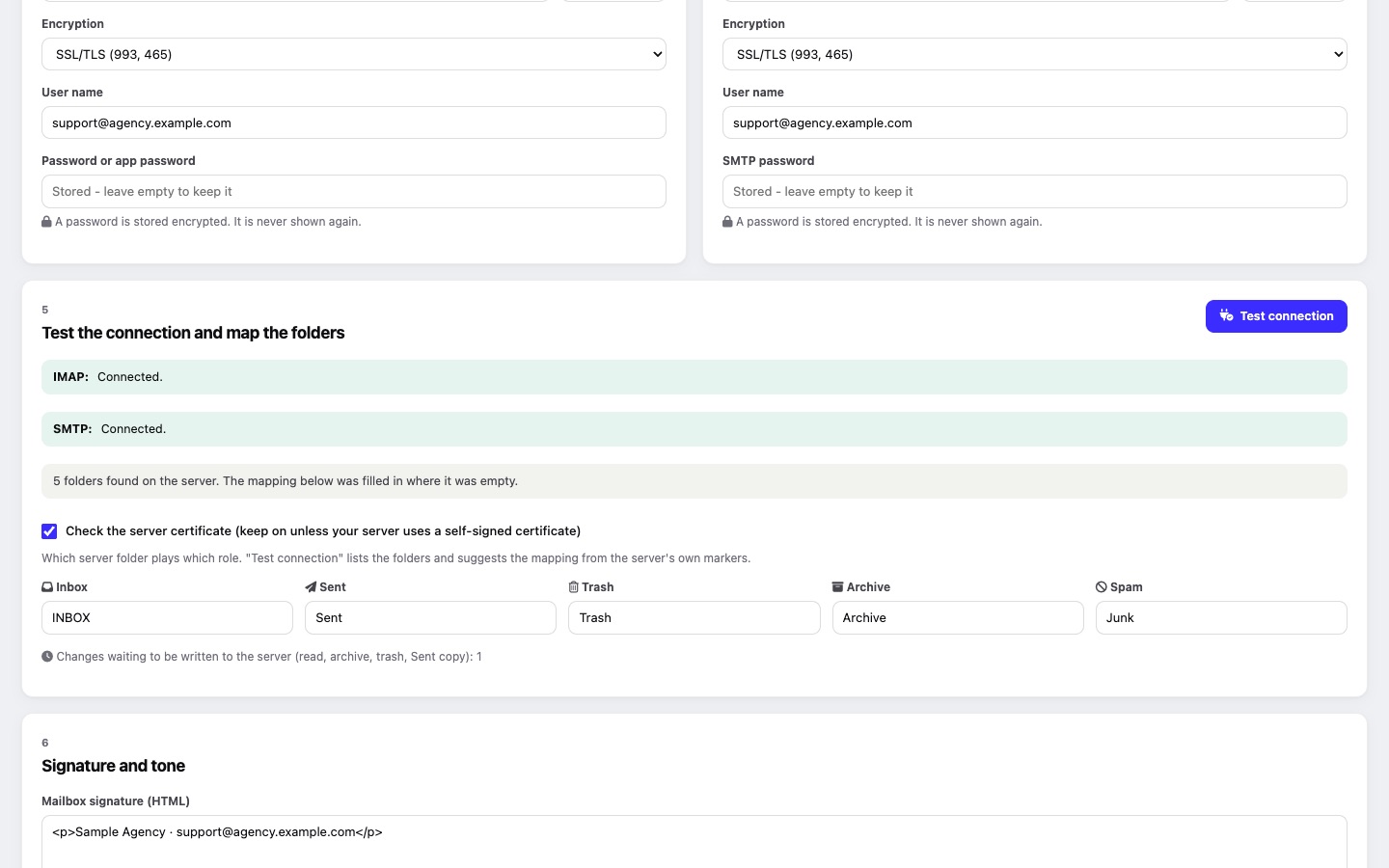
| 5 · Test the connection and map the folders | Test connection, Check the server certificate, Inbox / Sent / Trash / Archive / Spam | Test connection and Folder mapping. Changes still waiting to be written to the server are counted here. |
| 6 · Signature and tone | Mailbox signature (HTML) | Added under the writer's own signature in new messages and replies (Signatures). |
| AI tone for this mailbox (optional) | Used only when AI is on (Optional AI). |
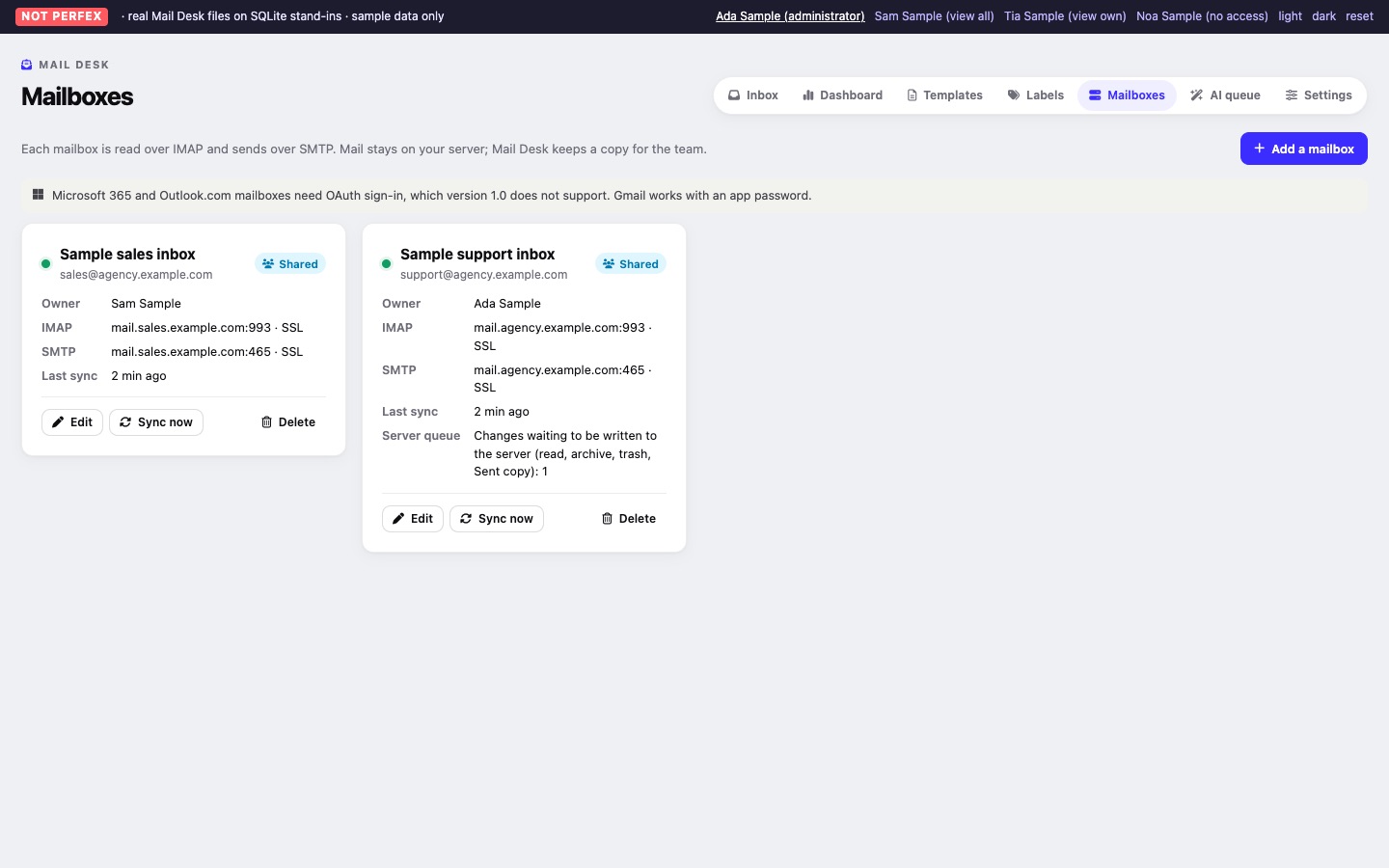
Mail Desk > Mailboxes shows a card per mailbox with its owner, IMAP and SMTP server, the last sync, waiting server changes and the last error, plus Edit, Sync now and Delete. A note at the top repeats that Microsoft 365 and Outlook.com mailboxes need OAuth, which 1.0 does not support.
09Test connection
Test connection in card 5 uses the values in the form, before you save. It needs the server, port and encryption of both IMAP and SMTP ("Fill in the server, port and encryption for IMAP and SMTP first."). It tries IMAP and SMTP separately and shows one line for each, for example "IMAP: Connected." and "SMTP: The user name or password was not accepted. …", so you know which side to fix; the card titles also show Connected or Failed. For a Microsoft 365 or Outlook.com server it adds that OAuth is needed.
When IMAP works, it says how many folders it found and fills in the folder fields that are still empty with its suggestion. For a saved mailbox, empty password fields use the saved passwords. Nothing is saved until you click Save mailbox.
What each message means and what to do: Troubleshooting > Connection test messages.
10Folder mapping
Mail Desk needs to know which server folder plays which role. The connection test suggests a mapping: first from the folder marks the server sends (SPECIAL-USE), then from common folder names in several languages (for example Sent, Sent Items, Gesendet, Odoslané; Trash, Deleted Items, Papierkorb, Kôš; Archive, All Mail; Spam, Junk).
| Role | What Mail Desk does with it | If it is not set |
|---|---|---|
| Inbox | Read for new mail. Default INBOX. | Always set. |
| Sent | Read, so replies sent from other mail programs appear in the conversation; every message sent from Mail Desk is saved here. | Mail is still sent, but no copy is saved on the server, and Mail Desk warns about it after sending. |
| Trash | Where the server copy goes when a conversation is moved to the trash, and where Restore takes it back from. | The conversation moves in Mail Desk only. |
| Archive | Where the server copy goes when a conversation is archived, and where Move to the inbox takes it back from. | The conversation moves in Mail Desk only. |
| Spam | Can be mapped, but version 1.0 neither reads this folder nor moves mail to it. | Nothing changes. |
11Pause or remove a mailbox
- Pause: switch Active off. Syncing and sending stop ("This mailbox is paused: no new mail is read and nothing can be sent from it."); everything stays.
- Delete (on Mail Desk > Mailboxes, with a confirmation): removes everything Mail Desk stored for that mailbox: conversations, messages, notes, label links, drafts, stored attachments and queued server changes. The mail on the mail server is not touched. If you add the mailbox again later, it is imported again from scratch.